Is Azure Virtual Desktop (AVD) a good fit for CAD & BIM? A deep dive analysis
Azure Virtual Desktop (AVD) is not a viable solution for CAD & BIM workloads due to performance bottlenecks, high costs, and RDP limitations. Businesses looking for cloud-based CAD/BIM solutions should consider dedicated Azure GPU VMs or specialized cloud services for optimal results.


Azure Virtual Desktop (AVD) is Microsoft’s cloud-based virtual desktop infrastructure (VDI) solution. It is designed to provide businesses with scalable, managed Windows desktops and applications. It’s widely used for office applications, IT-managed environments, and general-purpose knowledge work.
AVD is a good option for running remote desktops for many kinds of office work. But does AVD meet the performance, security, and usability needs of CAD and BIM professionals? Could architects, engineers and construction industry workers replace their in-office workstations with a VDI based on Microsoft Azure?
At Designair, we think the simple answer is “no”. As powerful as AVD is, it simply isn’t suited to the needs of CAD and BIM applications. In this article, we’ll explain why.
Read on to learn:
- Overview of AVD components
- Where AVD excels
- The major limitations of AVD for CAD/BIM applications
Full disclosure: Since late 2023 Designair offers an automated, ‘plug and play’ Desktop-as-a-Service for CAD and BIM that is built on Azure. Before this, we have offered a managed service on Azure for CAD and BIM applications for 5 years, and therefore know the ins and outs of how to make Azure really work for CAD and BIM applications. We don’t think of Azure Virtual Desktop as a competitor, but companies could, in theory, build their own VDI for CAD and BIM on AVD.
Overview of AVD’s main components
While AVD is a strong choice for office productivity and general VDI, it does not necessarily translate well to graphics-intensive engineering applications.
To explain why, let’s take a closer look at Azure Virtual Desktop’s 7 main components shown in the picture below.
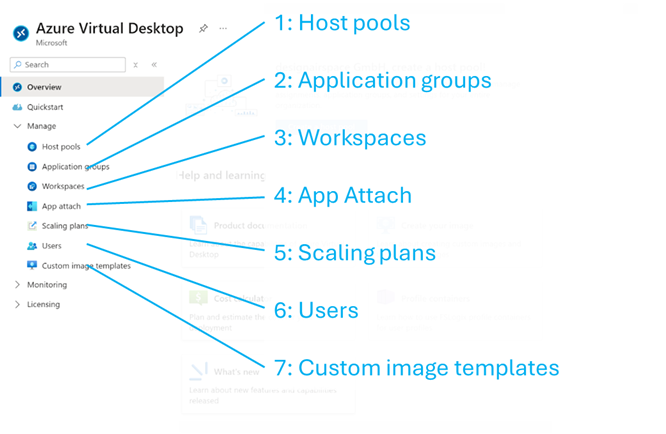
AVD is made up of several parts that work together to provide virtual desktops.
- Host pools are groups of virtual machines on which the virtual desktops and apps will run.
- Application groups determine what users can access, whether a full desktop environment or specific apps - called RemoteApps. When using RemoteApps, applications are streamed individually without launching a full desktop session.
- Workspaces act as a container where these resources are organized and presented to users.
- App Attach is a feature that allows applications to be delivered to users on demand rather than installed permanently.
- Scaling plans allow the admins to turn on and off “hosts” in the host pools.
- Users in AVD are assigned access to specific desktops or applications based on their role, ensuring that only authorized individuals can connect.
- Custom image templates allow organizations to deploy virtual machines with pre-configured settings, applications, and optimizations tailored to their specific needs, streamlining the provisioning process.
Where Azure Virtual Desktop excels
1. Ease of Use
AVD simplifies virtual desktop deployment compared to traditional VDI solutions, reducing the complexity of setting up and managing virtual machines. It allows IT teams to deploy desktops quickly through Azure’s management tools, making it a more accessible option for organizations without extensive Azure expertise.
2. Azure Entra ID Integration
AVD integrates well with Entra ID (formerly Azure AD). It supports role-based access control (RBAC), conditional access, and multi-factor authentication (MFA), making it a good fit for organizations already invested in Azure as their identity provider.
Review of AVD’s fit for CAD & BIM applications
For several years (between 2017 and 2023) Designair manually built desktops on Azure for our clients. This allowed us to build remote CAD and BIM desktops for our customers. Through this experience we also learnt about the limitations of AVD. Here, we’re reviewing the 7 components of Azure Virtual Desktops to highlight their fit (or lack thereof) for CAD and BIM.
1. Host pools: host sharing is a no-go for CAD & BIM
A host pool is a group of computers that run virtual desktops. Each computer (host) in the pool provides the power needed for users to run their virtual desktops.
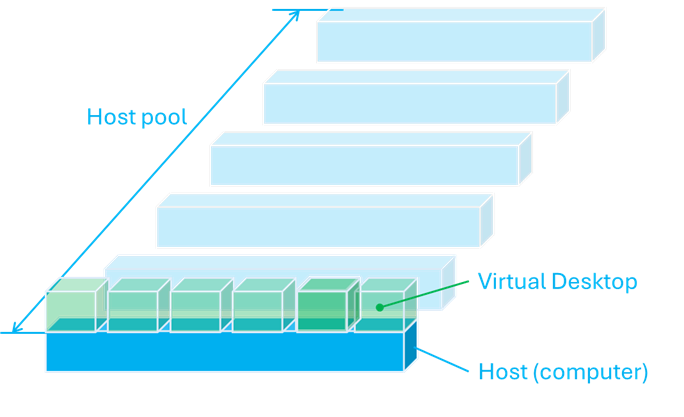
One of the main issues with AVD for CAD and BIM users is how host pools work. AVD allows multiple virtual desktops to run on the same machine (host), meaning that several users are working from a single server (host) at the same time.
The example below shows how a host pool is created in Azure Virtual Desktop. In this case, the maximum number of concurrent (virtual desktop or application streams) sessions is set to 12.
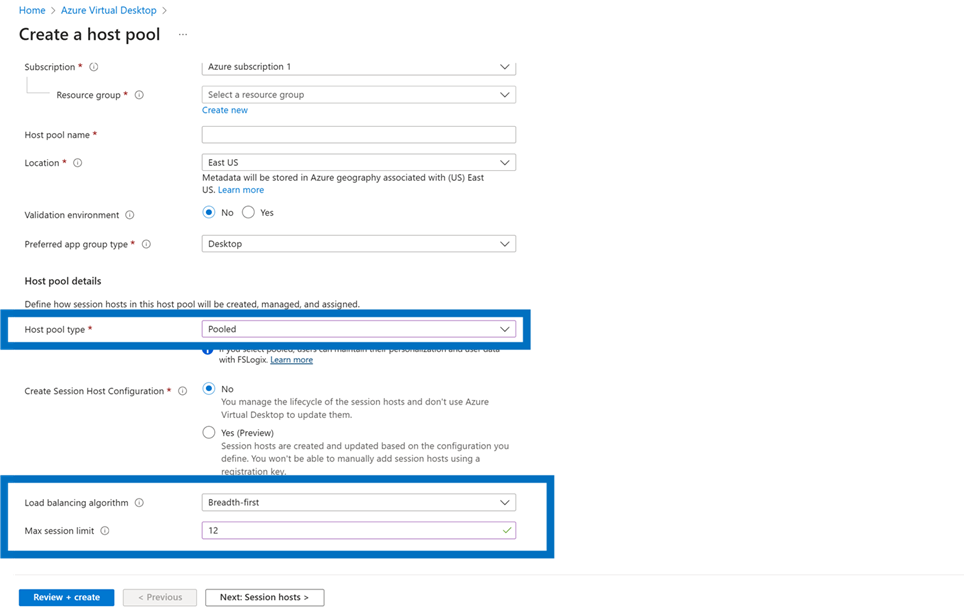
This setup works well for office applications, because they will not exhaust the compute (and graphics) power of the host. But CAD and BIM software require much more power than those applications.
Sharing a host amongst multiple users means they are competing for the same CPU and GPU. This is sometimes called the “noisy neighbor" effect. This sharing of resources will lead to long load times, choppy movement, and slow rendering. This is especially noticeable when working on large 3D models or detailed architectural plans.
Revit, for example, is notorious for needing a large amount of RAM. If the virtual desktop’s RAM is shared between multiple users, it does not simply make Revit run twice as slow—it can cause the entire system to choke for each user. When RAM runs out, the computer has to compensate by constantly reading and writing data to the hard drive (known as paging or swapping), which dramatically slows down performance. This makes working with large BIM models frustrating and inefficient.
The impact of shared resources includes:
- Slower response times when navigating or modifying complex models.
- Reduced frame rates, making 3D modeling frustrating to work with.
- Unpredictable performance, as resource availability changes depending on how many users are active at the same time.
Because AVD is designed to maximize resource sharing rather than providing dedicated computing power to each user, it does not meet the needs of professionals who rely on powerful hardware to work efficiently.
But wait a minute…
At this point, you might argue that it is possible to assign one virtual desktop per host - and you would be absolutely right, but there’s also a second effect here at play. With AVD, the host is using a portion of its compute resources to run the Virtual Desktop. This drains it from compute power.
In the example below, compare two scenarios. In the left hand, there’s one Azure Virtual Desktop that runs Windows. This Azure Virtual Desktop in turn, runs on a host. On the right hand side, Windows is running directly on the host and it has all the resources from the host at its disposal.
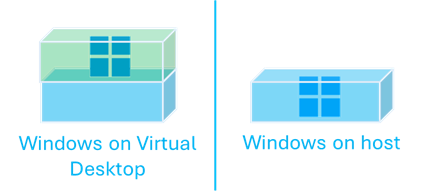
Even if you were to accept AVD’s “leakage” of compute power, having one virtual desktop per host defeats the whole purpose of AVD, for two reasons.
A - Complexity
AVD is designed to maximize resource efficiency by allowing multiple users to share computing power. When each user requires their own dedicated virtual machine, AVD loses its main advantage over standard Azure virtual machines. In this setup, businesses no longer benefit from AVD’s session-based scaling, and managing individual hosts becomes more complex: you’ll need to figure out how to turn these hosts on and off, because AVD out of the box assumes the underlying hosts are already running.
B - Cost
This brings us to the second problem. A setup of one virtual desktop per host means that each user is paying for the full cost of an entire virtual machine, including GPU, CPU, and RAM, whether they are actively using it or not. By default, the hosts are running 24 x 7, even when the users only work eight hours a day, five days a week. This problem can be ameliorated with scaling plans (see later), but this is only a workaround. To really solve this, programming and automation is required, which - again - defeats the whole purpose of having a simple, straightforward and streamlined solution.
2. Application groups: RemoteApps are not a solution for CAD & BIM
While host pools determine how virtual machines are allocated, application groups in AVD determine what users can access. There are two main types: desktop application groups, which give users a full virtual desktop experience, and RemoteApps, which stream individual applications without opening an entire desktop.
RemoteApps are incredibly easy to set up. Administrators can quickly publish applications, allowing users to access them as if they were installed locally. This works well for office applications like Microsoft Word or Excel.
For an end user, a remote app looks in the Remote Desktop client as follows:
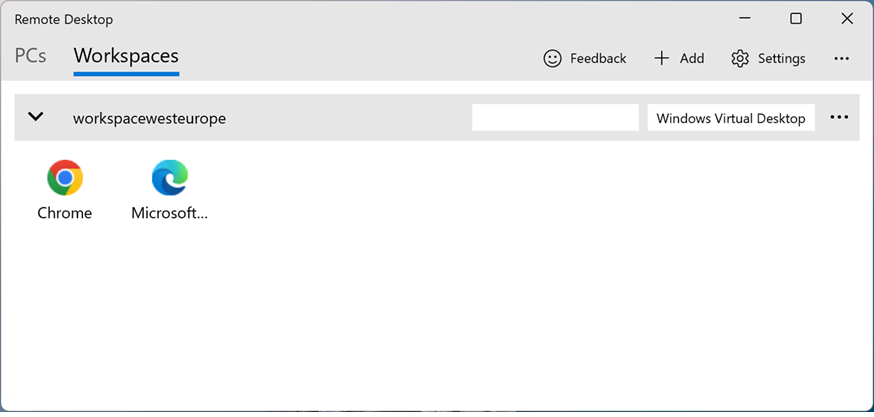
However, for CAD and BIM applications, RemoteApps are useless. The reason is that RemoteApps rely on Remote Desktop Session Host (RDS), which does not support GPU acceleration. This means that even if the underlying virtual machine has a powerful GPU, the application will not be able to use it. As a result, any CAD or BIM software running as a RemoteApp will experience terrible performance, with slow rendering, laggy model manipulation, and unresponsive user interaction.For engineers and designers working with 3D models, RemoteApps are simply not an option.
Many administrators mistakenly assume that because their session hosts have GPUs, RemoteApps will take advantage of this hardware. However, since RemoteApps run on Remote Desktop Session Host (RDS), they do not have direct access to the GPU—even if the virtual machine itself is GPU-enabled. This misunderstanding often leads to frustration when CAD and BIM applications perform poorly despite being deployed on high-end virtual machines.
3. Workspaces: RDP creates bottlenecks for CAD & BIM
While application groups define which applications users can access, workspaces determine what users “see” when they log into their remote client, whether it's a full desktop session or a streamed application.
A key limitation of AVD workspaces is that they are designed for the Remote Desktop or RDP client, which functions through Remote Desktop Protocol (RDP). This means that, regardless of how powerful the underlying virtual machine is, users have no choice but to use a streaming technology that is designed for standard office applications, not for high-performance 3D modeling or BIM software.
RDP compresses and optimizes graphics to save bandwidth, which works well for spreadsheets and documents but introduces major issues for CAD and BIM users:
- Visual compression reduces image quality, making fine details in drawings and 3D models harder to see.
- Input lag causes delays in mouse movements, making precise adjustments frustrating and imprecise.
- Limited multi-monitor support results in lower refresh rates and awkward scaling across multiple displays.
For CAD and BIM professionals, the ability to interact smoothly with complex models is critical. Because AVD workspaces force users to rely on RDP, they introduce latency, degraded image quality, and poor responsiveness, making them an unsuitable choice for engineers and architects.
4. App Attach: not a perfect fit for CAD and BIM
While workspaces define how users interact with their virtual desktops, App Attach is designed to streamline how applications are delivered. Instead of installing software directly onto a virtual machine, App Attach dynamically attaches applications to a user's session when needed. This helps reduce VM size and speeds up login times. However, for CAD and BIM applications, App Attach introduces serious limitations.
The biggest limitation of App Attach with CAD and BIM is its limited GPU integration.
Although it is a misconception that App Attach prevents applications from using the GPU entirely (like RemoteApps), App Attach does not guarantee full GPU acceleration, making it unsuitable for 3D modeling and rendering tasks.
While App Attach does not outright block GPU access, it introduces significant challenges that can interfere with GPU acceleration. Since applications are mounted dynamically rather than traditionally installed, they may not properly integrate with system-level GPU drivers, registry settings, or required dependencies. Many CAD and BIM applications expect direct installation and tight integration with the operating system, which App Attach disrupts. As a result, these applications may fail to leverage GPU acceleration effectively, leading to performance degradation, rendering issues, or unexpected crashes.
Other major issues with App Attach for CAD and BIM are:
- Performance Bottlenecks: CAD and BIM applications require seamless access to system files, registry entries, and local configurations, but App Attach isolates applications in a way that can cause slowdowns or compatibility issues.
- Licensing and Plugins Issues: Many CAD/BIM applications rely on hardware-based or local network licensing models, which can break when delivered through App Attach. Additionally, plugins and custom configurations often do not function correctly when the application is dynamically attached rather than traditionally installed.
- Mapped Drives and Database Connections Don't Work: CAD and BIM applications frequently rely on mapped network drives (e.g. for AVEVA or Revit Central Model File) and direct connections to database servers, such as PLM (Product Lifecycle Management) systems such as Teamcenter, Windchill, or Vault, App Attach does not provide the persistent environment needed for these connections, leading to issues where software cannot locate project files or interact with company databases properly.
One of the reasons we built Designair was to offer our customers the ability to deploy, maintain and delete any CAD and BIM application with a mouse-click, a Netflix-like experience for CAD and BIM. This means Designair fulfills the promise of Software-as-a-Service for the entire community of Architecture, Engineering, Design and Construction industries. This would never have been possible with Azure Virtual Desktop’s RemoteApps or App Attach.
5. Scaling Plans: helpful, but not a solution
Scaling Plans are designed to control how many virtual machines are active at any given time. This is particularly relevant for organizations trying to balance cost and availability. However, Scaling Plans are currently in preview, meaning they are not yet a fully developed feature.
Scaling Plans allow administrators to automatically start or stop hosts based on usage patterns. At first glance, this seems like a promising way to optimize costs, especially for organizations using pooled hosts where multiple users share resources. By shutting down machines when they are not needed, Scaling Plans reduce the risk of unnecessary expenses.
In the picture below, you can see how scaling plans help to create schedules for turning on and off the underlying hosts.
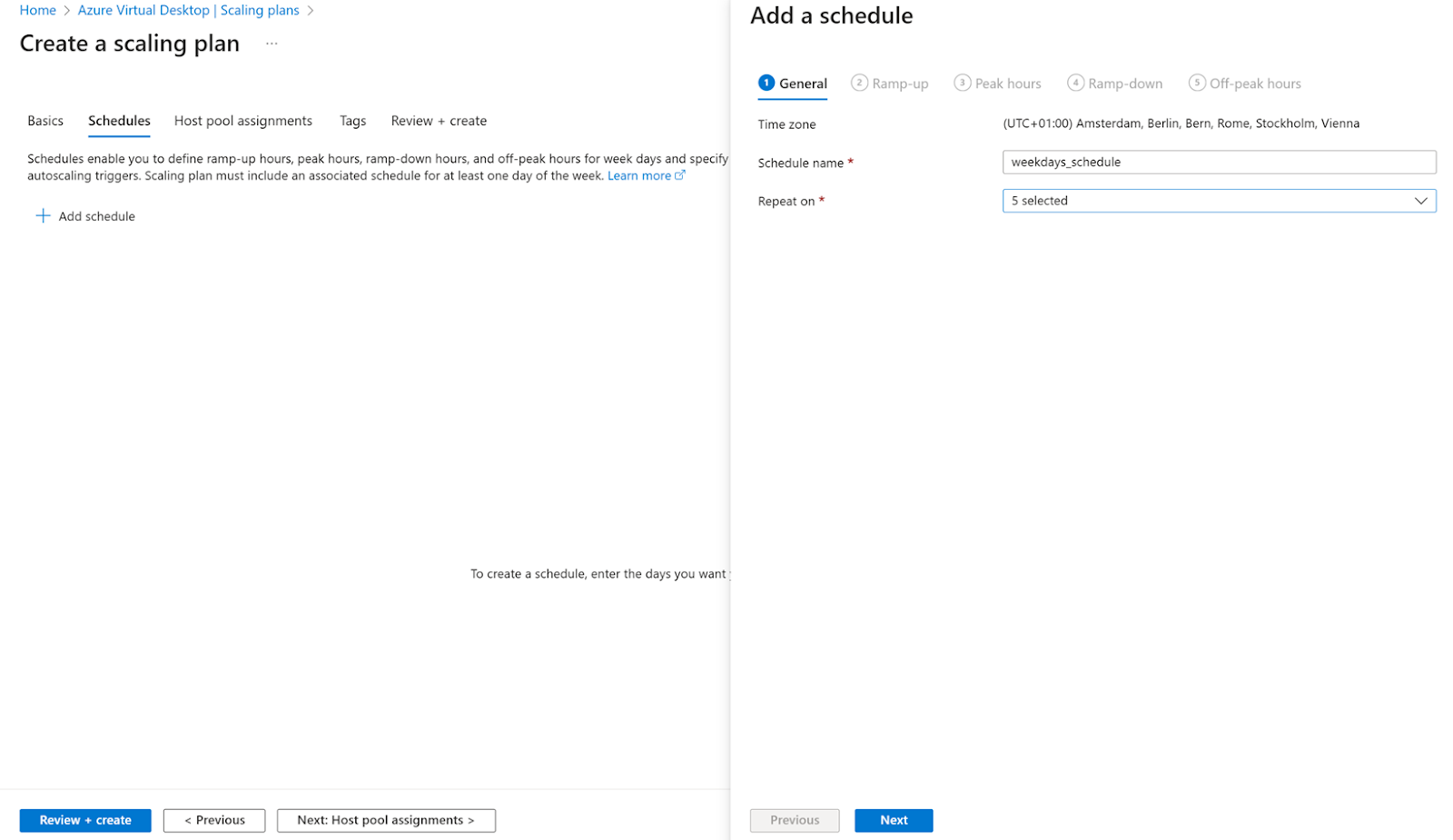
However, Scaling Plans do not truly solve the core issue of auto-shutdown. Instead, they function as a workaround for the fact that AVD lacks built-in auto-shutdown at a per-user level. While they help in environments with many shared virtual machines, they are not effective in scenarios where each CAD or BIM user needs a dedicated machine.
For users who require one virtual machine per person, Scaling Plans still leave the challenge of ensuring that machines shut down when not in use. Unlike solutions that offer granular, per-session shutdown controls, Scaling Plans are focused on batch optimizations rather than individual user activity.
AVD’s pricing is directly tied to how long virtual machines remain running, and Scaling Plans reduce the financial risks associated with pooled hosts. But without proper auto-shutdown mechanisms, organizations still risk paying for GPU-powered VMs even when they are idle.
Unlike solutions designed with cost optimization in mind, AVD does not offer:
- Separation of provisioning and access, which would allow more efficient VM usage, because when the user cuts their access, this acts as a trigger for a shutdown.
- Native per-user auto-shutdown based on session inactivity.
- Built-in cost controls for GPU usage when no active workloads are running.
This means that, without additional automation, AVD session hosts can stay active long after users have logged off, leading to wasted cloud spend. Or, it could mean that users lose valuable work, when user inactivity inadvertently triggers an auto-shutdown, for example when a user has stepped away from the (virtual) desktop.
AVD requires additional custom development or third-party tools to manage GPU costs efficiently, making it less attractive for CAD and BIM workloads.
6. User management: a great feature with a big vendor lock-in
AVD’s user management is one of its strongest features. By leveraging Entra ID, organizations can enforce single sign-on (SSO), multi-factor authentication (MFA), and role-based access control (RBAC) with ease. This ensures a secure, seamless login experience for users while giving IT administrators full control over who can access virtual desktops and applications.
However, this tight integration comes with a significant downside—vendor lock-in. AVD requires Entra ID for authentication, meaning that organizations using alternative identity providers, such as Okta or Google Workspace (Google Login)will face challenges. While there are ways to integrate third-party identity providers with Entra ID, they add complexity and may not offer the same level of seamless functionality.
This raises an important question: How well does AVD work for organizations that don’t want to rely entirely on Microsoft for identity management? If a company prefers Okta or Google for authentication, how smoothly can users access their virtual desktops? Currently, AVD’s reliance on Entra ID makes it less flexible for businesses that use multi-cloud or hybrid identity strategies.
7. Custom image templates: a great feature for standardization and efficiency
Custom Image Templates allow IT administrators to create and deploy virtual desktops with pre-configured settings, applications, and optimizations. Instead of setting up each virtual machine from scratch, administrators can build a single, optimized image that includes all necessary CAD/BIM applications, drivers, and performance tweaks. This ensures that every new virtual desktop has the exact same configuration, reducing inconsistencies and setup time.
The benefits of Custom Image Templates include:
- Faster Deployment – New virtual desktops can be spun up quickly from a standardized image.
- Consistency Across Users – Ensures that all users have the same configurations, eliminating software conflicts or missing dependencies.
- Optimization for Performance – Custom images can be fine-tuned for CAD and BIM applications, preloading necessary drivers, settings, and plugins.
- Reduced Management Overhead – IT teams don’t have to manually install applications and settings on every virtual machine.
For CAD and BIM professionals, where performance and stability are key, Custom Image Templates are a powerful tool. Unlike App Attach, which struggles with large applications and GPU integration, Custom Image Templates allow full installation of CAD/BIM software, ensuring proper GPU acceleration and hardware integration.
This makes Custom Image Templates one of the strongest features of AVD, particularly for organizations that need a controlled, repeatable deployment process for complex engineering applications.
But What About Security?
We have now looked at the major components of Azure Virtual Desktop to illustrate the poor fit of AVD with CAD and BIM applications. But what about security?
As a Microsoft product, AVD does indeed offer strong authentication through its integration with Microsoft Entra ID. However, AVD also comes with notable security concerns, particularly related to Remote Desktop Protocol (RDP). By default, AVD exposes RDP for user access, and unless properly configured, this can present a significant attack surface. Open RDP ports can be targeted by brute-force attacks, credential stuffing, and other cyber threats. While administrators can restrict access using network policies and security tools, this requires additional manual hardening to bring AVD up to enterprise security standards.
Another area of concern - besides their enormous costs - is persistent virtual desktop sessions. Unlike solutions that enforce session-based shutdowns, AVD allows desktops to remain active indefinitely if not properly managed. This increases the risk of unauthorized access, data leakage, and exposure to vulnerabilities if security patches are not applied regularly.
Ultimately, AVD offers strong authentication but requires additional security hardening to mitigate risks associated with RDP exposure, session persistence, and vendor lock-in.
Summary: Key Limitations of AVD for CAD & BIM
AVD offers ease of use and security integration, but it presents serious challenges for CAD and BIM applications. The table below summarizes these key limitations.
Category
Issue with AVD
Impact
Performance
Host pools allow resource sharing
GPU and RAM are shared, leading to slowdowns, especially in apps like Revit that need dedicated RAM
Azure Virtual Desktop itself consumes additional resources from the host
Performance “tax” of AVD vs. running CAD and BIM applications in the host
No choice in streaming protocol
RDP is the only option, causing input lag and poor image quality
Security
RDP is exposed by default
Requires manual hardening to prevent cyber threats
Cost
No built-in per-user auto-shutdown
Virtual machines can remain active longer than necessary, leading to higher costs
Dedicated VMs for each user are expensive
Using AVD as a single-user VM makes it more costly than alternatives like dedicated Azure VMs
Support
No direct Microsoft support for issues
Businesses may struggle with troubleshooting without a dedicated support from Microsoft
Azure Virtual Desktop isn’t the right tool for the (CAD and BIM) job
It is absolutely possible to run CAD and BIM applications on Azure, but Azure Virtual Desktop (AVD) is simply not the right tool for the job. Azure offers powerful GPU-enabled virtual machines that can deliver outstanding performance for engineering workloads—if deployed correctly. However, AVD introduces unnecessary complexity, performance limitations, and cost inefficiencies that make it a poor fit for CAD and BIM users.
For businesses looking to run CAD and BIM applications in the cloud, AVD introduces more challenges than benefits. While it is a strong solution for office productivity and general-purpose VDI, its reliance on RDP, lack of GPU-friendly application streaming, and cost inefficiencies make it a poor fit for engineering and architectural workloads. Organizations should consider alternatives that provide low-latency GPU performance, better cost optimization, and greater flexibility in deployment in Azure.