Virtual Workstations for CAD and BIM: Options and Cost
What a virtual workstation is, how AWS WorkSpaces, Azure Virtual Desktop and Workstation-as-a-Service compare for CAD and BIM, and what each really costs.


Search for a virtual workstation and you hear gobbledygook like Amazon WorkSpaces, Azure Virtual Desktop, NVIDIA RTX vWS, Citrix, VDI, or DaaS. This guide sorts them, so you can pick the approach that fits how your firm works.
What is a virtual workstation
A virtual workstation is a high-performance computer, with a fast processor, plenty of RAM, and a partitioned GPU. It runs in a data centre instead of under your desk. You reach it over the internet from any device, even mobile, so demanding software like Revit, AutoCAD, or SOLIDWORKS runs without buying or shipping hardware.
You will also see it called a virtual desktop. The underlying parts are the same. The difference is the GPU and the streaming technology, which is what lets the workstation handle a 3D model rather than a spreadsheet.
Is this article for you? You do not move to a virtual workstation for raw speed, and not to save money. A good machine under the desk often costs less. What that machine cannot do:
- hire the best people wherever they live, not only within commuting distance
- get a new hire or an outside consultant working with their CAD software on your models in minutes, instead of buying and shipping a workstation, configuring it, and waiting on a VPN connection
- staff CAD and BIM teams across offices, home, and site on the same model at full speed, not fifteen-minute file syncs
- staff up for a deadline and then demobilise the team after the deadline, without buying workstations for people who leave in two months
- keep project data in the data centre, off laptops that can be lost or stolen and workstations that can be breached
If none of that matters to your firm, a workstation under the desk is the simpler answer.
Heavy design software is what runs this way. If your firm uses any of these, a virtual workstation fits how you work:
Simulation and CAE (ANSYS, Abaqus), GIS (ArcGIS Pro), media and VFX (Blender, Unreal, After Effects), and GPU data-science work fit here too. Plain office software does not. For email and spreadsheets, a virtual workstation is overkill.
How it works. The machine runs in a data centre. A streaming protocol sends the pixels that make up your screen to your PC, laptop, tablet, or thin client. It also sends your mouse and keyboard back to the machine. Nothing runs on the local device, so a light laptop can run a heavy model. The work and the files stay in the data centre.
Why CAD and BIM are the harder case. For office software, almost any virtual desktop will do. CAD and BIM are not so forgiving. Two things decide whether the workstation feels like a real one: the partitioned GPU that renders the 3D model, and the streaming protocol that sends its display to your screen, 60 times per second. Get either wrong and the model stutters when you pan, zoom, or rotate. Getting both right is what separates the options, and it decides who should build and who should buy.
The building blocks
Most virtual workstations are built on one of the three hyperscalers: Amazon Web Services, Microsoft Azure, or Google Cloud. These hyperscalers offer all the necessary technical bits: the data centre, the networks, the storage, the compute power and the graphics boards. To turn these into a virtual workstation, there’s a lot of assembly required. To make this easier, Microsoft and Amazon offer so-called “frameworks”: building blocks that make it easier to assemble the bits yourself.
A second approach is what specialised Desktop-as-a-Service providers (who build only virtual workstations, like Vagon.io or Designair.io, the authors of this blog) offer: a complete self-service approach, where you sign up and spin up a finished, pre-configured virtual workstation in minutes. The workstation just works.
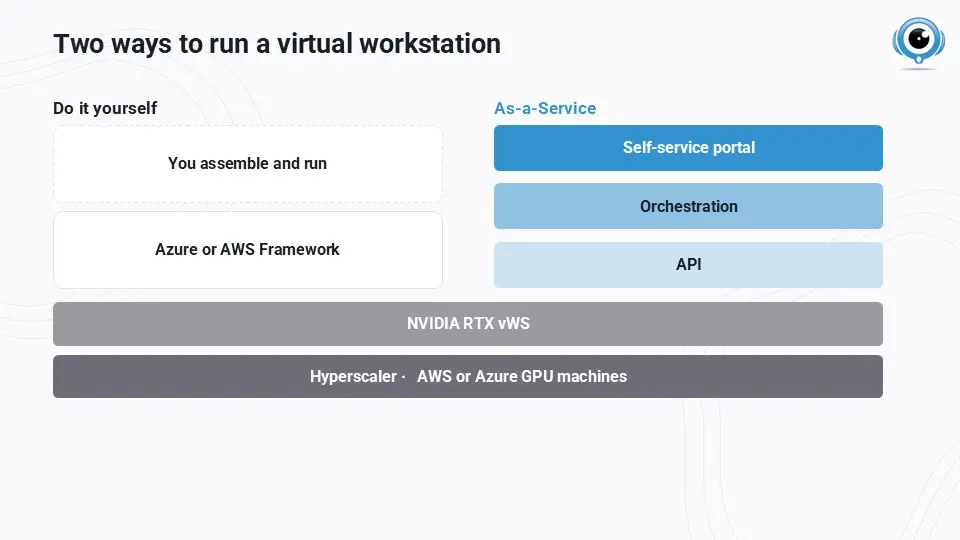
The diagram above shows the whole stack on one page. Read it from the bottom up.
The hyperscaler’s foundation. Underneath everything is the cloud infrastructure: GPU virtual machines from AWS or Azure, with an NVIDIA RTX vWS vGPU layer that partitions the physical GPU so each workstation gets its share. Other components are networking, storage, firewalls and servers. Almost every virtual workstation these days is built on one of those three hyperscalers.
Do-it-yourself: a framework. Microsoft and Amazon offer a framework to turn the raw infrastructure into virtual workstations. AWS WorkSpaces and Azure Virtual Desktop (AVD) are their respective names. (Google Cloud has no Windows desktop framework comparable to AVD or WorkSpaces; it documents building virtual workstations directly on its virtual machines.) A framework is the building blocks to create a Windows desktop with a GPU. It still does not give you a finished CAD environment, just like IKEA doesn’t give you furniture.
The finished product. This is a “point and click” self-service portal. You sign in, click “start”, and your machine runs in your browser. The admin version of the portal lets you create and delete machines, from “bare Windows” to fully configured and loaded with your 3D apps. Beneath the portal, the DaaS providers have built the orchestration that manages and runs all the infrastructure bits, via APIs. The orchestration does the assembly for you. You get a login to a working virtual workstation, and the work underneath is someone else’s job. The trade calls this Desktop-as-a-Service; built for CAD, it is Workstation-as-a-Service. A smaller group of Desktop-as-a-Service firms specialise in this: virtual workstations with partitioned or full GPUs and a graphics-grade streamer, for CAD, BIM, and 3D. Vagon and Designair are two providers available worldwide.
Build it yourself, or buy it finished: the comparison
Four questions separate the two. Work through them and the right choice for your firm becomes clear.
A project, or a product
Do-it-yourself is a project. You choose one of the two frameworks, Amazon’s or Microsoft’s. You then size the machines, wire up the storage and the servers, and keep it all running. This is the “build” phase. After this comes the “run” phase: the IT team maintains and troubleshoots this environment, and supports the virtual workstations for your CAD and BIM teams.
A Workstation-as-a-Service is both a product and a service. It is already built, and it is maintained for you. You use it the way you use any other service, support, maintenance and troubleshooting included.
One question applies to everything below: do you want the project of building virtual workstations with a framework, and if so, which one? Or do you buy Workstation-as-a-Service off the shelf? Each comes with a trade-off.
The single most important factor for CAD: the streaming technology
For CAD, one part matters more than any other for the user’s experience: the streaming technology. It sends every pan, zoom and rotate from the machine to your screen, 60 times per second. A streamer built for 3D feels like a local machine. A streamer built for office apps does not, however much GPU is behind the machine.
This is where the first trade-off is for the frameworks. While they make life a lot easier for building virtual workstations yourself, they also come with limitations. One is the streaming technology.
AWS WorkSpaces has the better streamer for CAD. Its streaming technology is Amazon DCV, built for demanding 3D work, and it does that job well. Independent write-ups on remote display protocols put DCV in the graphics-grade tier and RDP in the office and light-3D tier; Leostream’s comparison is a good place to start. What DCV does not do is finish the environment: WorkSpaces is a framework like any other, so the file server, the licence server, the security and the support are still yours to build and run.
Azure Virtual Desktop’s streaming technology is locked to RDP. RDP was built to send crisp text and flat windows cheaply. Tuned, on a short hop, with a light model, it works. The further you get from that, a heavy model, a home line, a long distance, the more you see compression artefacts (tech talk for blurry, messy screens), input lag, and weaker multi-monitor support. Sizing, region, codec settings and client all change how far you get, and they are worth doing well. What they do not change is the streaming technology itself, and on AVD that is the only one you get. This is Microsoft’s own design, not our opinion: its own guidance on GPU acceleration describes AVD’s graphics as GPU acceleration for RDP.
RDP for CAD: the honest case.
RDP is better than its reputation: it is built into Windows, and on a GPU machine it hardware-accelerates the picture in H.264 and H.265. Microsoft’s own documentation says this benefits 3D modelling and CAD. On a fast connection, with those options turned on, it is fine for lighter 3D.
The limits are real too. The graphics options are off until someone turns them on, and Microsoft says so: by default a session renders on the processor and does not use the GPU at all. Over a home line or a long distance, a protocol built for 3D holds a frame rate that RDP cannot. And on Azure Virtual Desktop, RDP is the only option: you cannot put a graphics-grade streamer on AVD.
That limit appears in the browser. A browser client is the low-maintenance option: almost nothing to install, patch, or break, and a consultant is working in seconds on a device you do not manage. On AVD the browser client is single-monitor, so a second screen means installing and managing the Windows App, Microsoft’s native client. Amazon DCV runs two monitors in the browser.
So the two frameworks are built for different jobs. WorkSpaces has the streamer for 3D. AVD runs Windows desktops at scale. Neither gives you a CAD environment.
The frameworks, judged on the whole job
A virtual workstation has to deliver five things. Take them one group at a time.
Start with what the designer feels.
WorkSpaces and AVD both give a GPU, and both redirect peripherals. The split is the streaming technology, and on AVD it is the only one you get.
Now add the other four.
Your team runs all five, and on that measure AVD takes four. The reason is that you already own most of the tooling. The images go through the gallery and Intune you use for laptops. The machines run in your VNet, behind the ExpressRoute or VPN you already terminate. Alerts arrive in Azure Monitor. Sign-in runs through Entra with your Conditional Access and MFA, so there is no second identity stack to certify.
If you are building it yourself in a Microsoft shop, that is a real argument for AVD, and it is why most firms start there. Every one of those four is a capability your team operates.
Now add the third option.
On application delivery, and on reaching your file servers, licence servers and network, all three reach the same end state. What differs is the work to get there, what breaks along the way, who fixes it at four in the afternoon on a deadline, and whose certificate covers what you are running.
The trade-off is how much control you keep. You cannot tune what you do not run, and you take a provider’s roadmap and support along with the service.
The remaining question is cost.
What is included, and what is not
A framework like Amazon WorkSpaces gives you a running virtual workstation. Workstation-as-a-Service goes beyond this, and offers a working, supportable CAD environment that includes:
- a fileshare, for mapped drives to exchange files and models among the team
- a file server for Revit worksharing via the Revit central model file
- a licence server (for network licences) or database server (e.g. SQL for Autodesk Vault)
- network connections back to your on-premise servers, PLM
- single sign-on beyond Microsoft Entra (Okta, et al)
- ISO 27001 certification (see trust.designair.io)
- a written service description so it is clear what the service covers
- support that understands CAD when a model will not open
If you build the virtual workstation yourself, you build, run and support this, without a framework.
For the IT team: where the data is kept, and who runs it.
Three questions an IT owner asks that a demo rarely answers.
Where the data is kept. With Workstation-as-a-Service the models stay in the data centre, in a region you choose, and never on a laptop that can be lost or stolen. Access runs through your own identity: Entra or another provider, single sign-on, and multi-factor. The Designair service is ISO 27001 certified, and what that covers is set out at trust.designair.io.
Who owns the support load. Build it yourself and your team owns the patching, the images, the file services, the backups, and the support queue for your most demanding users. Buy it finished and the provider owns all of that. For a small IT team, buying finished removes a system instead of adding one.
Getting out. Workstation-as-a-Service is a monthly arrangement you can end, not a build you are left maintaining for years. Your models and data stay yours.
What is included, what connects to your side, who patches what, and how you leave: those are twenty minutes on a call, not a brochure. Book a call.
What it costs
The number on the hyperscaler’s invoice is only part of the cost. The rest is the time you spend building and running it, and the time you lose waiting for it to work.
Put your own numbers in below. The calculator uses AVD as the do-it-yourself reference, because most firms have standardised on Azure and choose AVD first, enterprise agreement in hand.
Two costs the calculator makes visible are easy to miss.
The AVD pooling trade-off. On AVD you pick one of two, and each costs you something. Pool the hosts, and several users share one machine. That lowers the bill, but they share the GPU and memory, and heavy models slow down, more so when the machine is busy. Give each user a dedicated machine, and performance is there, but by default the machine runs around the clock, because deallocating it per user takes a scaling plan you set up and tune.
The cost of waiting. A do-it-yourself build takes months. Those are months you stay on the old setup. For most firms that is the largest cost of all, and it never shows up on the invoice. Our analysis of workstation total cost shows how far the real number is above the sticker price.
Which one is right for you
The right answer depends on your firm:
You are a freelancer, a small studio, or a handful of seats. Buy a self-service virtual workstation and do not over-buy. Vagon is built for this: a strong machine by the hour, no infrastructure to run. A full managed CAD platform would be more than you need.
You are in a regulated industry, or you run hundreds or thousands of seats, or you already run a serious VDI estate. You have the IT weight to build and run it, and the scale and compliance needs that justify the build. Classic VDI with a graphics-grade protocol fits here. Citrix, with its HDX protocol, is the reference. AWS WorkSpaces is a sound option too, if you are on AWS and happy to assemble the rest.
The same holds, more so, for a very large firm under data-sovereignty rules, with a stable seat count and no hard cost ceiling: own the whole stack, in your own or a sovereign cloud, with a graphics-grade protocol. At that size, the run cost is affordable and the control is worth the money.
You are a CAD or BIM firm in between, from ten seats to a few hundred, with no appetite to run the file and licence servers or tune shutdown scripts. A CAD-specialist Workstation-as-a-Service is the fit. At that size you have the CAD demands of a large firm without the staff to cover them. The five groups above still have to be delivered: the streaming has to be tuned, the images kept current, the file and licence servers run, the identity and the certificate shown to an auditor, and someone has to answer the call when a model will not open. On a team of three, that is the whole team.
Summary and recommendation
A virtual workstation runs your CAD or BIM software on a full or partitioned GPU in a data centre, and streams it to any device. For it to feel like a real workstation, two things have to be right: the GPU, and the streaming protocol.
There are two options. Build it yourself and you get a framework, and you build the file and licence servers, the security, and the support around it. Buy Workstation-as-a-Service and the provider delivers the ready environment.
Which one to pick comes down to your firm:
- a few seats, keep it simple: a self-service virtual workstation like Vagon
- regulated or very large, with the IT weight to run it: classic VDI like Citrix
- a CAD or BIM firm in between: a CAD-specialist Workstation-as-a-Service like Designair
- whatever your size, the streaming technology decides what the day feels like
If you are in that middle group, start with the setup tool above. Put in your numbers and see what a fit looks like for your firm. When you want to see it running, the trial is two weeks, up to five users, on your own software and models, with no contract until it has proved itself. Start a trial.
Frequently asked questions
What is a virtual workstation?
A high-performance computer, with a fast processor, memory, and a partitioned GPU, that runs in a data centre and streams to any device over the internet. It lets demanding software like Revit or AutoCAD run without a powerful local machine.
How does a virtual workstation work?
The machine runs in a data centre. A streaming protocol sends its screen to your device and sends your keyboard and mouse back. Nothing runs locally, so a light laptop can run a heavy model, and the data stays in the data centre.
Is a virtual workstation better than a physical one?
For a team spread across offices, home, and site, or for firms that would rather not buy and refresh hardware, a virtual workstation is often the better fit. A single user tied to one desk with a fast local machine may not need one. Our workstation cost analysis compares the real numbers.
What is the difference between VDI, DaaS, and a virtual workstation?
VDI is the infrastructure you build and run yourself. DaaS is that same idea delivered as a finished, managed service, and for CAD it is Workstation-as-a-Service. A virtual workstation is the machine itself, however it is delivered. Our VDI versus DaaS guide goes into the detail.
Can you run Revit or AutoCAD on a virtual workstation?
Yes. Sized correctly, with a partitioned GPU and a graphics-grade streaming protocol, Revit and AutoCAD run as well as, or better than, a local machine. Our ten performance factors for Revit in the cloud shows what to check.
What GPU do you need for a virtual workstation?
It depends on the software. Revit itself is happy with a 4 GB GPU partition. Rendering and visualisation tools want far more, 16 GB or higher. The point is to size the partition to the application, not to buy the largest by default.
How much does a virtual workstation cost?
You pay per machine, per month, plus usage, instead of buying hardware. The setup tool above puts your own numbers in. The real comparison is not the monthly line alone; it is the total cost against a physical workstation over its life, and the cost of the months you would spend building it yourself.
Persistent or non-persistent, which do I need?
CAD and BIM users almost always want persistent: the same machine, with their settings and files, every time. Non-persistent desktops reset between sessions and suit shared, task-based work, not design.
Is there a free trial?
Yes. Designair runs a two-week trial for up to five users, on your own applications and data. Start a trial.
.png)